
How to Make Handwritten Notes and Sketches Actually Searchable

""What Apple, Google, and Microsoft already built — and the real gap none of them cover""
Say you've got a shelf of notebooks, a drawer of index cards, and a phone full of photos of whiteboards from old work meetings. Somewhere in that pile is the answer to something you need right now — which notebook has the electrician's number, which sketch has the parts list for the bike you're fixing, which whiteboard photo has the budget figure someone wrote down and never typed up. A typed document you can search in two seconds. Handwriting is a genuinely different problem, and it's one that three major tech companies have already put real engineering into, with three different results.

Private, on-device AI for your documents — ask questions, get cited answers.

People searching "how to search handwritten notes" or "OCR app for handwriting" are usually trying to solve one of two different problems, and it's worth separating them. One is transcription: turning ink into typed, searchable text, which is what Apple's Notes app, Google Photos, and Microsoft's OneNote already do, each in a different way and with different trade-offs around where the processing happens and what counts as supported handwriting. The other is comprehension: asking an actual question about what's in an image — including a sketch that has no legible words in it at all — and getting an answer, not just a match.
This piece goes through what those three tools actually do today, with sources, including where each one still falls short. Then it gets into the second problem, the one none of them solve: asking a real question about an image or a mixed folder of scanned notes, PDFs, and hand-drawn sketches, entirely offline.
Indexing Handwritten Notes Cuts Manual Browsing
Searching handwritten notes helps users locate stored ideas quickly using indexing systems that reduce manual browsing time, according to feednexus.com. Digitizing handwritten notes into searchable PDFs is a key first step that makes the content retrievable through standard document search. These indexing approaches let people recover information from notes they once had to flip through by hand.
AI-Powered OCR Is the Core Method
The standard approach to making handwriting searchable is AI-powered OCR, which turns handwritten notes, images, scans, and PDFs into editable digital text. Handwriting OCR converts handwritten text from scanned PDFs and images into machine-readable formats, which can then be indexed and searched. However, handwritten text recognition remains challenging for OCR systems, which limits accuracy on messy or cursive input.
Searchable Handwriting Has Deep Roots in Note Apps
Evernote's ability to search handwritten notes has long been considered one of its best features, making searchable handwriting a defining capability of mainstream note-taking apps. The milestone was bringing search to stored handwritten content rather than treating notes as static images. This set the stage for today's apps that search across typed text, handwriting, and sketches.
What Apple, Google, and Microsoft Already Do With Handwriting
Three products already handle a version of this, and the differences between them matter more than most people realize. One works entirely on the device as you write. One works over your whole cloud photo library. One only works if you've turned on a specific cloud sync setting. Here's what each one is actually doing, not just what it's marketed as doing.
Apple's approach lives inside Notes on iPad. When you write with an Apple Pencil, a feature called Scribble converts the strokes to text in the background as you write — there's no separate scan step. Apple's own support documentation describes on-device tools like spellcheck and handwriting auto-refine that run on top of that converted text, correcting misspelled words and adjusting letterforms while keeping the note looking handwritten. Apple's search guide for the app confirms what that background conversion is actually for: the same search box that covers typed text, text in images, and scanned documents also covers handwritten pages — type a word into Notes search and it can surface a page that was never manually transcribed. The catch is language support: Scribble launched with iPadOS 14 in 2020 with English and Chinese only, and French, German, Italian, Portuguese, and Spanish weren't added until the iPadOS 14.5 update the following year, according to MacRumors' reporting at the time. If your iPad's system language isn't on that list, the search benefit doesn't apply.
Google's version lives in Google Photos rather than a notes app, and it works on any text in a photo, typed or handwritten, wherever it appears. Per Google's own help page, wrapping a search term in quotation marks gives an exact text match against filenames, captions, and text found within the photo; without quotes, results widen beyond exact text. It's genuinely useful for finding one photographed page inside a library of thousands of pictures, but it's search over a flat photo library — it points you to the photo, it doesn't read or answer a question about what's written in it.
Microsoft's version sits inside OneNote, and Microsoft has been the most specific about how it actually works. Ink from a stylus is uploaded and run through Microsoft's recognition engine, and per Microsoft's own announcement of the feature, which still describes the underlying mechanism, that processing takes two to five minutes and only applies to notebooks saved to OneDrive — a notebook kept purely offline isn't covered. The same post puts the recognizer's language support at 25 languages. Microsoft also makes a separate scanning app, Microsoft Lens, which according to its own support page is best used for capturing handwritten notes and sketches on a dry erase board, and can turn a photographed page into an editable Word file using OCR. That's a different job than OneNote's ink search: it's OCR run on a photo rather than recognition of live pen strokes, and like any photo-based OCR, results generally hold up better on a clean, well-lit whiteboard shot than on handwriting photographed at an angle or in dim light.
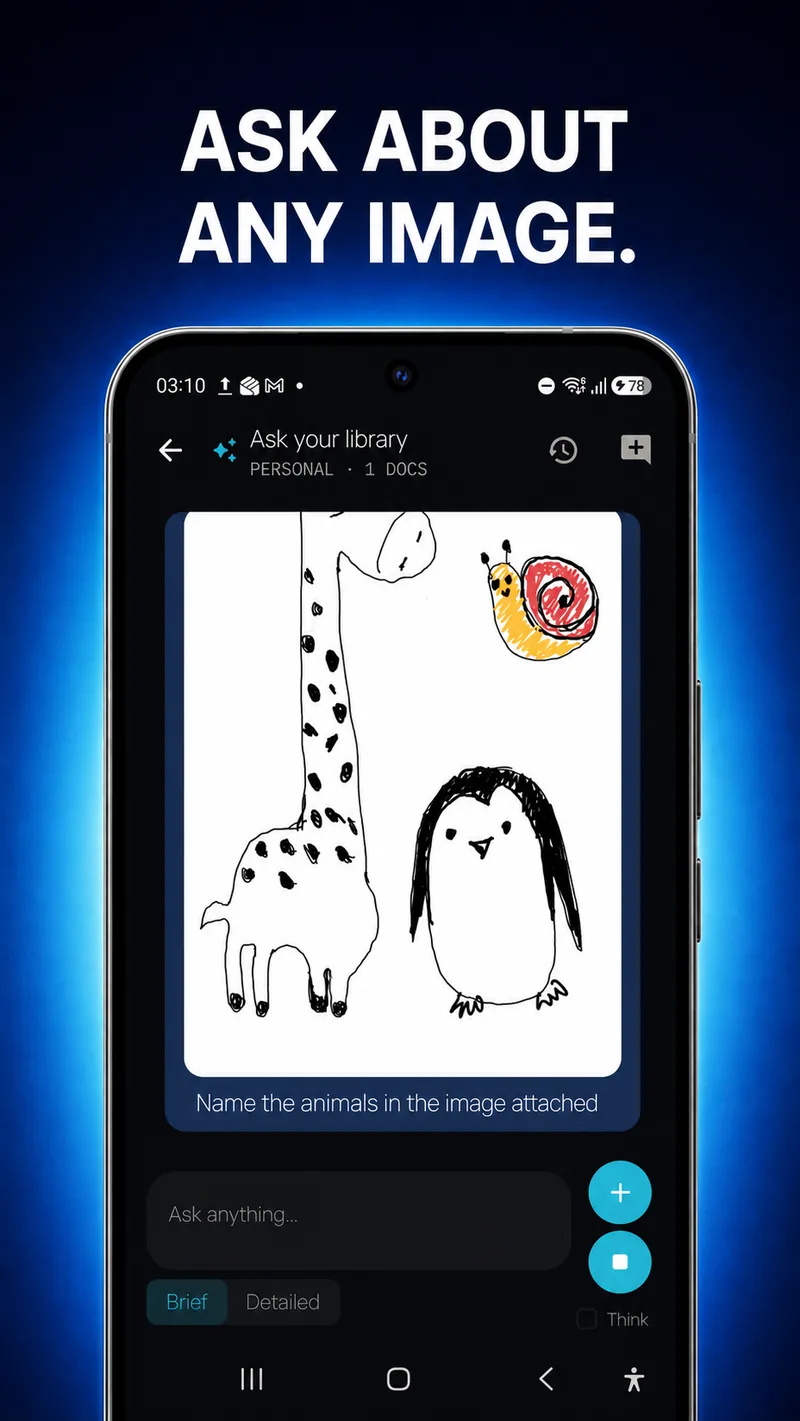
What none of the three actually do is answer a question about an image. They convert handwriting into text you can then search for, or copy text out of a photo you already found. None of them will look at a hand-drawn sketch with no legible words in it and tell you what's drawn.
- Cursive handwriting is still the hard case for every recognition engine on this list, not just the smaller ones. An independent comparison of desktop OCR tools by imagetotable.ai found ABBYY FineReader's accuracy dropping from 95.2% on printed handwriting to 91.7% on cursive, and Adobe Acrobat dropping further, from 88.6% to 79.3% — roughly a 10 to 15 percentage-point penalty for joined-up letters, because cursive removes the clear gaps between characters that recognition depends on.
- Language coverage is uneven and easy to miss, and it can also depend on which device wrote the ink in the first place. Scribble's non-English languages arrived a full iPadOS version behind English, and OneNote's ink recognizer covers 25 languages — a lot, but not universal. A Microsoft support thread confirms OneNote for iPad doesn't have the ink-to-text feature at all — handwriting written there only becomes searchable once the same notebook is opened in OneNote for Windows, where the recognizer actually runs.
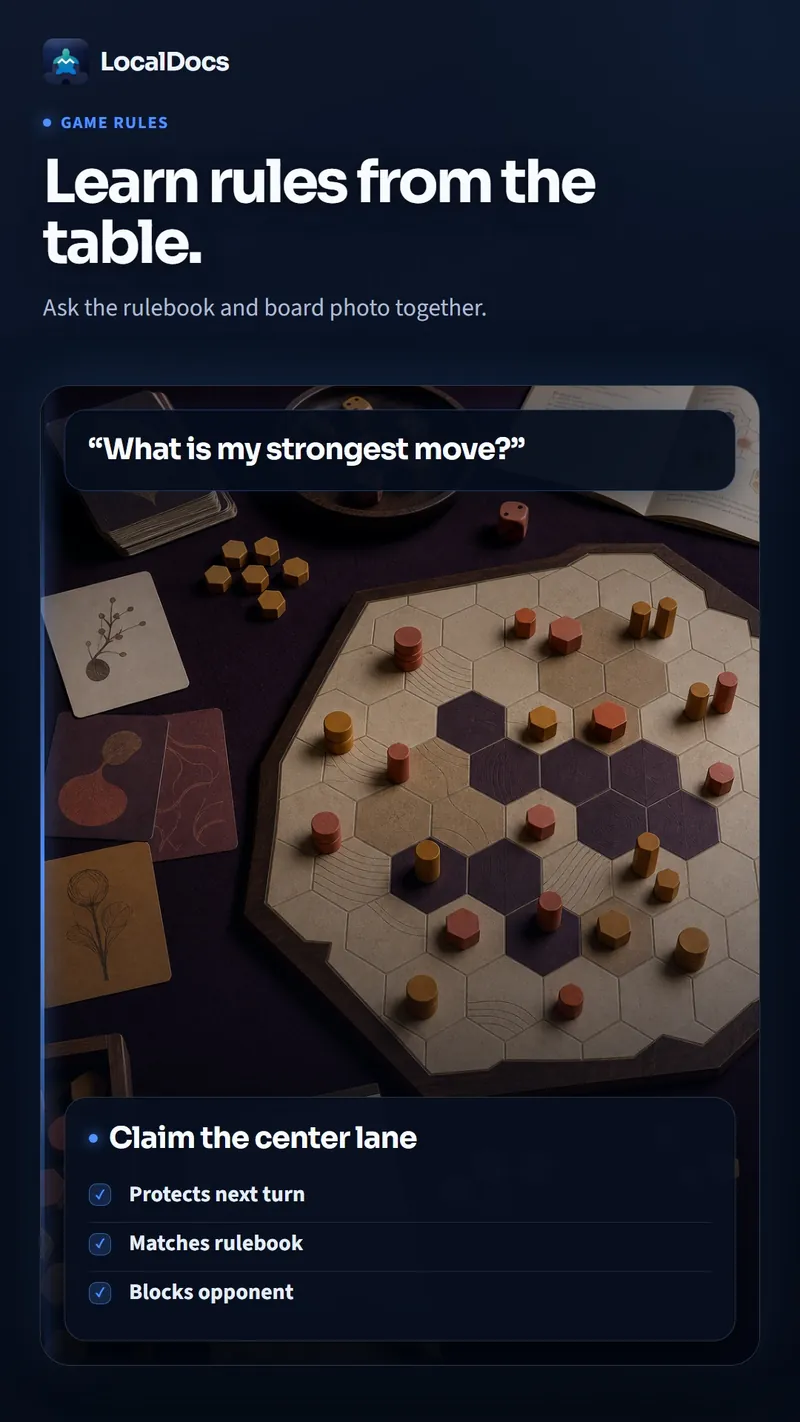
- A folder that mixes formats is the case none of the three tools above is built for. Say a shelf of board games has PDF rulebooks plus an index card where you scribbled a house rule mid-game — LocalDocs can be pointed at that whole folder, and when you name or attach the card directly, it reads that photo alongside the printed manual and names which document the answer came from.
- LocalDocs runs its recognition model on the phone itself, not a data-center GPU, and that trade-off shows up as speed: indexing a large folder, or asking a question that has to check many documents at once, takes noticeably longer than sending the same request to a big cloud model. The upside is that nothing has to leave the phone to get an answer.
- Handwriting understanding on LocalDocs, like every tool above, is strongest on legible print or a clearly drawn sketch, and weaker on fast cursive or a diagram that crowds sketches and scrawled labels together. Neater notes get meaningfully better results than rushed ones.
Benchmarking Handwriting Recognition: LLMs vs. OCRs
Recent work has begun benchmarking large language models against traditional OCR systems for handwriting recognition. Researchers explain why handwriting is hard to recognize and list concrete measures to improve handwriting extraction accuracy. This comparative benchmarking is informing which tools users should trust for real-world note digitization.
Why Handwriting Still Trips Up Recognition Tools
Handwritten text recognition is challenging for OCR because handwriting is inherently difficult to recognize, a limitation the sources acknowledge openly. These failures mean users may still need to review or correct converted output, especially for cursive or irregular writing. Accuracy, not availability, remains the core constraint for making notes truly searchable.
Note Apps Take Different Routes to Searchable Notes
Goodnotes lets users search across typed text, handwriting, and sketches, while Notability's handwriting search is framed as transforming the studying experience by making key information easier to locate. Noteshelf adds AI-powered notes, geometrical shape drawing, image editing, and sync across Android devices. Evernote's searchable handwritten notes remain one of its best features, showing how apps differentiate on how deeply they index handwriting.
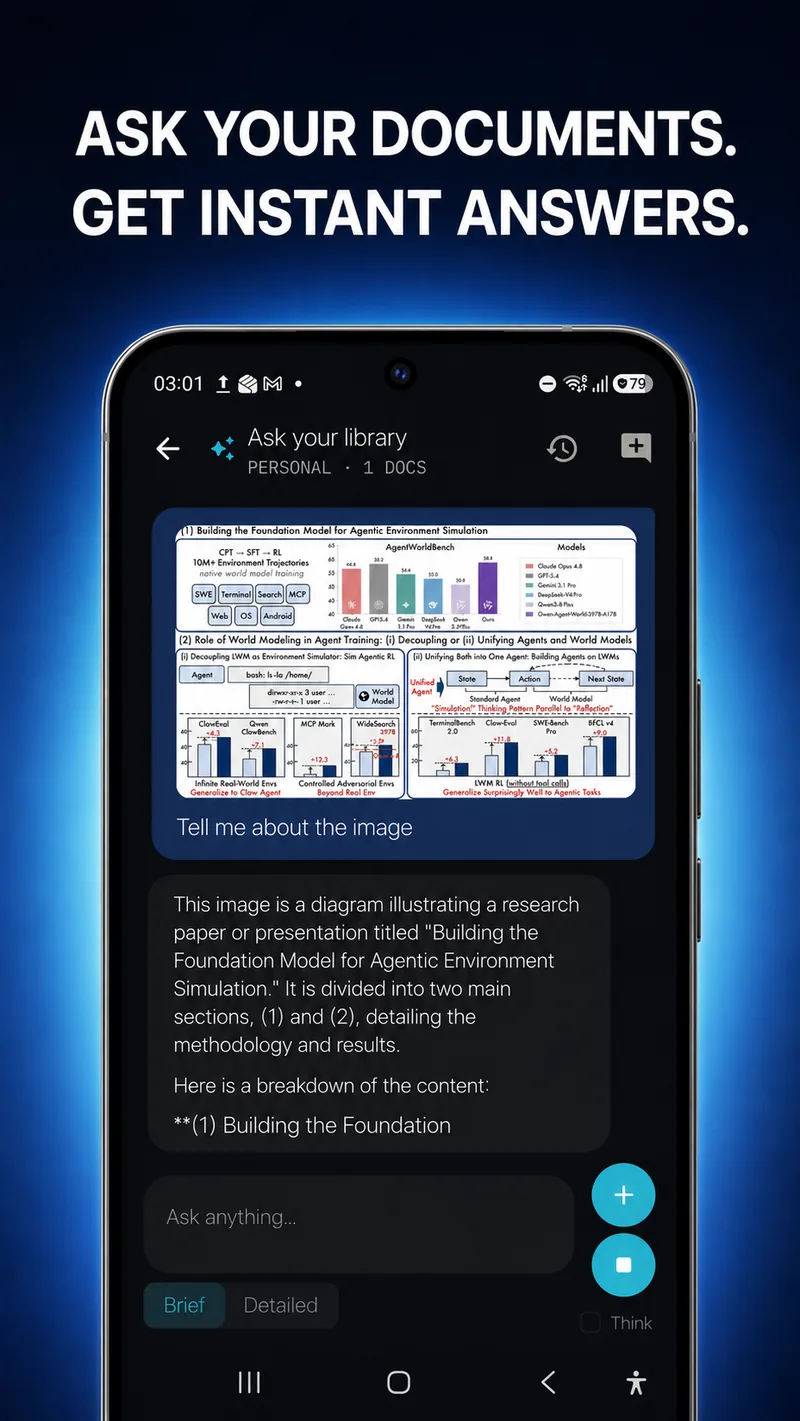
LocalDocs is built for exactly that mixed-folder case. Point it at a folder — the app's own promotional materials use an example of 23 documents across 10 folders — and it reads PDFs, .docx files, plain text, Markdown and HTML pages together for any question you ask, while a photo or hand-drawn sketch is read when you attach or name it directly, then answers a plain-language question with a citation showing which specific document it pulled from; tap the citation and it opens the source so you can check the answer yourself instead of taking it on faith. Answers can be copied, shared, or read aloud, and question history is grouped into Today, Yesterday, This Week and Older, with a source count next to each answer. It runs on an Android 12 or later, 64-bit device, entirely on the phone: no account, no analytics, no tracking, and no internet connection needed once a folder is indexed. That's a narrower claim than "private," and a more precise one — it means documents and questions are processed on the device and are not uploaded to a server to generate the answer. It doesn't mean the phone itself is secure: anyone who picks up an unlocked phone can open the app, and on-device processing does nothing to stop malware already on that phone. It also doesn't retroactively protect files that are already synced elsewhere — if the folder LocalDocs is pointed at sits inside Google Drive or a similar sync service, those files are already in the cloud regardless of how LocalDocs itself handles them. And because the model is small enough to run on a phone, it can still get an answer wrong the way any language model can; the tappable citation exists so you can check it rather than trust it outright.
LocalDocs is Mystum's own app — we built it, and we're telling you about it here directly. If you want to try pointing it at your own folder of scanned notes, sketches, and documents, you can get it here.
The Actual Takeaway
If you're already inside one of these ecosystems, use what's already there before reaching for anything new. An iPad and Apple Pencil already make your own handwriting searchable as you write it, no extra app required. A OneNote notebook synced to OneDrive already turns your ink searchable within a few minutes. A Google Photos library already lets you search text inside any photo you've taken, handwritten or not. All three are free, all three are already built, and none of them require you to change how you take notes.
Searchability Depends on OCR, Indexing, and the Right Tool
Making handwritten notes searchable is a pipeline that starts with AI-powered OCR converting handwriting to digital text and ends with indexing systems that reduce manual browsing time. Tools can output Word, Text, Excel, LaTeX, or searchable PDFs to fit the user's next step. Together these techniques turn scattered sketches and scrawls into findable, queryable content.
AI Advances Point Toward Smarter, Multi-Modal Notes
Future tools point toward capturing thoughts however they come, with apps like Goodnotes letting users write, type, sketch, or speak in a single workspace. AI-powered recognition and large language model benchmarking hint that accuracy and meaning-based search will keep improving. Cross-device sync, as seen in Noteshelf, also suggests notes will follow users wherever they work.
Searchable Handwriting Is a Cross-Platform Challenge
The challenge spans desktops and mobile devices, with handwriting OCR converting text from scanned PDFs and images into machine-readable formats across platforms. Even office tools address the need, with Word letting users add handwritten notes, sketches, lines, arrows, and simple diagrams to documents. The systemic difficulty is that handwriting recognition remains hard, so results still vary by platform and input.
Search Turns Studied Notes Into Practical Tools
For students, searching through handwritten notes in Notability can transform the studying experience, making it easier than ever to locate key information. Indexing systems reduce manual browsing time, so people recover stored ideas quickly instead of leafing through pages. The payoff is practical: notes stop being static artifacts and start acting like a personal knowledge base.
Where they run out of road is the same place: none of them can look at a sketch and tell you what it shows, and none of them let you point at a photographed page and simply ask about it. That's a narrower job, and it's the one LocalDocs is built around — you name or attach the image you mean, and it is read alongside your typed documents in the same answer — with the trade-offs that come with running a language model on a phone instead of a server: slower on large folders, and, like the built-in tools above, still weaker on messy cursive than on clear print.
None of this makes handwriting recognition a solved problem. It makes it a set of tools that are each good at a specific, narrower thing than the marketing around them suggests — and picking the right one starts with being honest about which of those narrower things you actually need.
Private, on-device AI for your documents — ask questions, get cited answers.